Students today have access to more study materials than ever before check this how to use NotebookLM for studying,. Between PDFs, lecture notes, textbooks, presentations, and research papers, managing information can quickly become overwhelming.
That’s where Google’s NotebookLM comes in.
If you’re wondering how to use NotebookLM for studying, you’re in the right place. NotebookLM is an AI-powered research and note-taking assistant developed by Google that helps students organize, understand, and interact with their study materials.
Instead of spending hours searching through documents, NotebookLM lets you upload your files and ask questions like:
- “Summarize Chapter 5.”
- “What are the important formulas?”
- “Create a study guide for tomorrow’s exam.”
- “Explain this concept in simple terms.”
- “Generate quiz questions from my notes.”
By the end of this guide, you’ll know exactly how to use NotebookLM to improve your productivity and study smarter in 2026.
Table of Contents
What Is NotebookLM?
NotebookLM is Google’s AI-powered notebook that allows users to upload documents and interact with them using artificial intelligence.
Unlike traditional chatbots, NotebookLM only uses the information you provide, making it extremely useful for:
- Study notes
- PDFs
- Research papers
- Lecture slides
- Google Docs
- Text files
- Website links
Think of NotebookLM as your personal AI tutor that has read all your study material.
For example, if you upload a 100-page biology textbook, NotebookLM can summarize chapters, answer questions, and create revision notes in seconds.
Official Website
Why Students Love NotebookLM 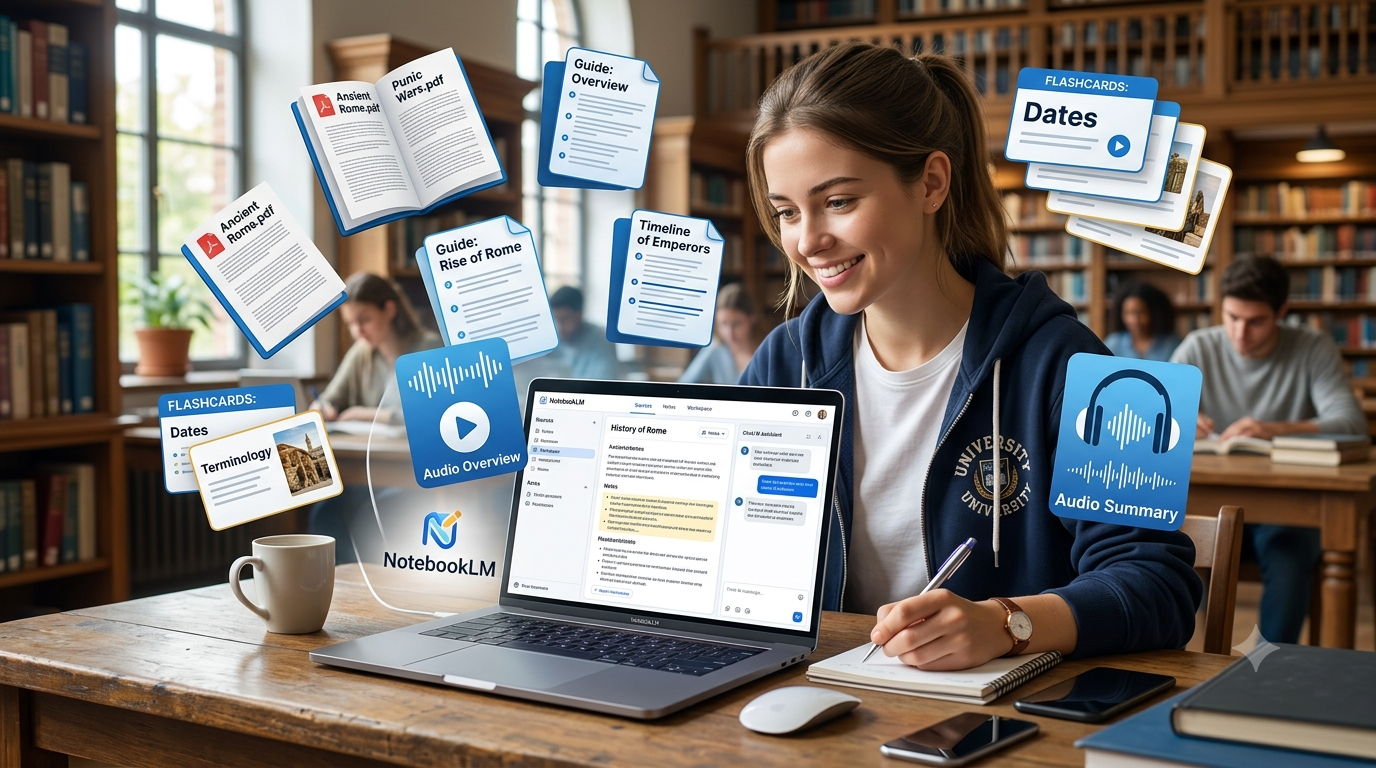
NotebookLM has become one of the most popular AI tools among students for several reasons.
1. It Saves Time
Students spend hours reading and organizing notes. NotebookLM can summarize large amounts of information almost instantly.
2. It Improves Understanding
If you don’t understand a topic, you can ask NotebookLM to explain it in simpler terms.
3. It Creates Study Material
NotebookLM can generate:
- Study guides
- Flashcards
- Summaries
- Timelines
- Practice questions
4. It Supports Multiple Sources
You can upload several PDFs and ask NotebookLM to compare or combine information.
5. It’s Free
One of the biggest advantages is that NotebookLM is currently available for free, making it accessible to students worldwide.
Why Learning How to Use NotebookLM for Studying Matters 
Learning how to use NotebookLM for studying can save students several hours every week. As AI becomes more common in education, understanding how to use NotebookLM for studying effectively will become an important skill. Students who master NotebookLM can improve organization, create better revision notes, and prepare for exams more efficiently.
Key Features of NotebookLM
Here are some of NotebookLM’s most useful features for students:
| Feature | Description |
|---|---|
| PDF Upload | Upload textbooks and notes |
| AI Summaries | Generate concise summaries |
| Study Guides | Create revision material |
| Audio Overviews | Listen to AI-generated podcasts |
| Question Answering | Ask questions about your documents |
| Multiple Sources | Combine information from different files |
| Citation Support | View where answers come from |
| Google Integration | Works seamlessly with Google services |
These features make NotebookLM one of the best AI tools for academic use.
How to Create a Notebook
Getting started with NotebookLM is incredibly easy.
Step 1: Visit NotebookLM
Go to:
Step 2: Sign In
Use your Google account to log in.
Step 3: Click “Create New”
You’ll see an option to create a new notebook.
Step 4: Name Your Notebook
Examples:
- Semester 5 Notes
- Data Structures
- Machine Learning
- Final Year Project
- Interview Preparation
Keeping separate notebooks for different subjects makes it easier to stay organized.
Uploading PDFs and Notes
After creating your notebook, it’s time to upload your study materials.
NotebookLM supports:
- PDFs
- Google Docs
- Text files
- Copied text
- Website URLs
Example Workflow
- Upload your Operating Systems PDF.
- Add your lecture notes.
- Include previous year’s question papers.
- Upload your professor’s presentation slides.
Now ask:
“What are the five most important topics for my exam?”
NotebookLM will analyze all your sources and provide an answer based on the uploaded content.
You can also ask:
- “Summarize Unit 3.”
- “Create 10 MCQs.”
- “Explain deadlock in simple terms.”
- “Generate revision notes.”
This is where students begin to understand how to use NotebookLM for studying effectively.
Best Practices When Uploading Documents
To get the best results:
- Upload clean PDFs.
- Use descriptive notebook names.
- Keep one subject per notebook.
- Add multiple sources for better answers.
- Remove outdated documents.
The quality of NotebookLM’s responses depends heavily on the quality of the material you provide.
https://studentaiincomehub.com/best-free-ai-tools-for-college-students/
https://studentaiincomehub.com/ai-flashcard-tools-for-students/
https://studentaiincomehub.com/ai-mind-mapping-tools-for-students/
Generating Study Guides
One of the best features of NotebookLM is its ability to create comprehensive study guides automatically.
Imagine uploading:
- Lecture notes
- Textbooks
- PDFs
- Previous question papers
- Presentation slides
Then simply asking:
“Create a study guide for my upcoming Data Structures exam.”
Within seconds, NotebookLM can generate:
- Important concepts
- Definitions
- Key formulas
- Frequently asked questions
- Chapter summaries
- Revision points
Example
Suppose you upload a Computer Networks PDF. NotebookLM might generate:
- OSI Model
- TCP/IP
- Routing Algorithms
- DNS
- HTTP & HTTPS
- Network Security
This helps students identify what matters most before an exam.
Pro Tip
Ask NotebookLM:
“Create a one-page revision sheet.”
This is extremely useful the night before exams.
Asking Questions About Documents
NotebookLM works like an AI tutor.
Instead of reading an entire document, you can ask questions directly.
Examples
- What is Machine Learning?
- Explain Quick Sort.
- Which chapter discusses cloud computing?
- Summarize Unit 4.
- What are the important interview questions?
- Compare Stack and Queue.
- Explain inheritance with examples.
One of NotebookLM’s best features is that it cites the sources used to generate answers. This makes it more reliable than many traditional AI chatbots.
Example Interaction
Student:
Explain deadlock in simple terms.
NotebookLM:
Deadlock occurs when two or more processes are waiting for each other indefinitely, preventing all of them from proceeding.
It may also tell you which page in your PDF contains the explanation.
This is another reason why students are searching for how to use NotebookLM for studying in 2026.
Creating Exam Notes
NotebookLM is excellent for creating last-minute exam notes.
You can ask:
- Create short notes.
- Summarize all units.
- Generate important questions.
- List formulas.
- Create a cheat sheet.
- Highlight difficult concepts.
Example Prompt
“Create concise exam notes for all chapters in this notebook.”
Many students spend 5-6 hours creating revision material manually. NotebookLM can reduce this to less than 15 minutes.
Suggested Workflow
- Upload textbook.
- Upload class notes.
- Upload previous papers.
- Generate study guide.
- Generate quiz questions.
- Review summaries.
By following this process, students can create a complete exam preparation package in under an hour.
Using Audio Overviews
One of NotebookLM’s most unique features is Audio Overviews.
NotebookLM can generate AI-powered audio discussions based on your uploaded documents.
Think of it as a podcast about your study material.
Example
Upload:
- Artificial Intelligence Notes
- Machine Learning PDF
- Lecture Slides
NotebookLM might generate an audio conversation discussing:
- AI fundamentals
- Supervised learning
- Neural networks
- Real-world applications
This feature is especially useful for:
- Traveling to college.
- Walking.
- Exercising.
- Revising before exams.
Many students learn better through listening, making Audio Overviews a valuable addition.
Best Use Cases for Students
NotebookLM can be used in several ways depending on your academic needs.
Engineering Students
Use NotebookLM for:
- Semester notes
- Lab records
- Final-year projects
- Technical PDFs
Medical Students
Use NotebookLM for:
- Anatomy notes
- Case studies
- Research papers
- Medical terminology
MBA Students
Use NotebookLM for:
- Business case studies
- Presentations
- Market research
- Project reports
Law Students
Use NotebookLM for:
- Legal documents
- Case analysis
- Court judgments
- Research material
School Students
Use NotebookLM for:
- Science notes
- History summaries
- Mathematics formulas
- Exam preparation
Advanced Tips
If you want to get the most out of NotebookLM:
Use Multiple Sources
Instead of uploading one PDF, upload:
- Textbook
- Lecture Notes
- Previous Question Papers
- Presentation Slides
NotebookLM performs significantly better with multiple sources.
Keep Separate Notebooks
Examples:
- Operating Systems
- DBMS
- Computer Networks
- Artificial Intelligence
- Placement Preparation
This keeps your information organized.
Ask Better Questions
Instead of:
Explain AI.
Ask:
Explain supervised and unsupervised learning with examples suitable for a second-year engineering student.
The better your prompt, the better your answer.
Use It Weekly
NotebookLM becomes more useful when used consistently throughout the semester rather than only during exams.
Students who use it weekly often:
- Retain information better.
- Stay organized.
- Prepare faster.
- Feel less stressed during exams.
Common Student Workflow
Here’s a workflow that many students can follow:
| Step | Action |
|---|---|
| Monday | Upload lecture notes |
| Tuesday | Generate summaries |
| Wednesday | Ask questions |
| Thursday | Create flashcards |
| Friday | Generate quizzes |
| Saturday | Listen to Audio Overviews |
| Sunday | Revise study guides |
This simple routine can dramatically improve productivity.
https://studentaiincomehub.com/ai-chrome-extensions-for-students/
https://studentaiincomehub.com/students-feel-lost-about-their-future/
Pros and Cons of NotebookLM
Like any AI tool, NotebookLM has strengths and limitations.
| Pros | Cons |
|---|---|
| Free to use | Requires a Google account |
| Excellent PDF support | Responses depend on uploaded content |
| Generates study guides | Not all countries receive features simultaneously |
| Audio Overviews are unique | Cannot replace actual learning |
| Supports multiple sources | Internet connection required |
| Great for research | May occasionally misunderstand context |
For most students, the advantages significantly outweigh the disadvantages.
Common Mistakes Students Make
Students often make these mistakes when using NotebookLM:
1. Uploading Poor-Quality PDFs
Scanned or blurry PDFs can reduce response quality.
2. Using One Massive Notebook
Avoid mixing subjects like:
- Mathematics
- Physics
- Chemistry
- Computer Science
Create separate notebooks for better organization.
3. Asking Generic Questions
Instead of:
Explain DBMS.
Try:
Explain normalization in DBMS with examples suitable for a third-year engineering student.
4. Trusting Every Response Blindly
NotebookLM is helpful, but students should always verify important facts, especially for:
- Research papers
- Academic submissions
- Thesis work
- Project reports
5. Using It Only During Exams
NotebookLM works best when used throughout the semester rather than a few days before examinations.
Tips to Use NotebookLM Effectively
If you want maximum value from NotebookLM:
Tip #1
Upload:
- Lecture Notes
- PDFs
- Previous Year Question Papers
- Presentation Slides
Tip #2
Generate:
- Study Guides
- Flashcards
- Revision Notes
- Quiz Questions
Tip #3
Spend 10 minutes daily reviewing summaries.
Tip #4
Use Audio Overviews while:
- Traveling
- Walking
- Exercising
- Taking breaks
Tip #5
Keep notebooks organized by semester and subject.
Is NotebookLM Better Than ChatGPT for Students?
Many students ask this question.
Use ChatGPT For:
- General knowledge.
- Brainstorming ideas.
- Coding help.
- Creative writing.
Use NotebookLM For:
- PDFs.
- Study notes.
- Research papers.
- Exam preparation.
- Personalized learning.
If your goal is studying from your own materials, NotebookLM is usually the better choice.
Final Verdict
NotebookLM is one of the best AI tools released by Google in recent years.
For students, it offers:
- Faster studying
- Better organization
- Improved revision
- Personalized learning
- Significant time savings
If you’re still wondering how to use NotebookLM for studying, the answer is simple:
- Upload your materials.
- Ask questions.
- Generate study guides.
- Create revision notes.
- Use Audio Overviews.
- Review consistently.
Students who adopt AI tools responsibly will likely have an advantage throughout their academic journey.
Conclusion
Learning how to use NotebookLM for studying can completely transform the way students prepare for exams and manage academic workloads.
Instead of spending countless hours searching through PDFs and handwritten notes, students can use NotebookLM to organize information, generate study guides, and receive instant answers from their own materials.
As AI continues to evolve, tools like NotebookLM will become increasingly important in education. Students who learn to use these technologies today will be better prepared for both academic success and the future workplace.
If you haven’t tried NotebookLM yet, now is the perfect time to start.
Frequently Asked Questions
1. Is NotebookLM free?
Yes. NotebookLM is currently free for most users with a Google account.
2. Can NotebookLM summarize PDFs?
Yes. It can summarize textbooks, lecture notes, and research papers in seconds.
3. Is NotebookLM good for exam preparation?
Absolutely. It can generate:
- Study guides
- Revision notes
- Quiz questions
- Chapter summaries
4. Can I upload multiple PDFs?
Yes. NotebookLM supports multiple sources within a single notebook.
5. Does NotebookLM work on mobile devices?
Yes, although many students prefer using it on a laptop or desktop for better productivity.
6. Is NotebookLM better than ChatGPT?
For studying from your own documents, NotebookLM is often the better option.
7. Can NotebookLM create flashcards?
It can help generate flashcard content and study material from uploaded notes.
8. Is NotebookLM safe for students?
Yes, but students should avoid uploading sensitive personal information and should always review AI-generated outputs.
9. Why should I learn how to use NotebookLM for studying?
Learning how to use NotebookLM for studying helps students manage PDFs, create study guides, generate summaries, and prepare for exams more effectively.

Hi, I’m Balaji, founder of Student AI Income Hub. I write practical guides on AI tools, productivity, online income opportunities, and educational technology to help students study smarter, build digital skills, and make informed decisions about AI-powered learning.